AWS RDS/Aurora: Quick Launch—Automated agent installation
The fastest way to get started is using our AWS Quick Launch with just one click on the Agent page. This CloudFormation template automatically deploys the DBtune agent on a lightweight EC2 instance in your AWS account to tune your existing RDS or Aurora for PostgreSQL database. It configures the necessary IAM roles, and installs the agent in about 3-5 minutes.
What Quick Launch template does
- Auto-creates IAM role with EC2 trust policy and required permissions.
- Provisions a lightweight EC2 instance (t3.nano by default).
- Installs and configures the DBtune agent as a systemd service.
- Sets up security groups automatically from the EC2 instance to:
- Whitelist
app.dbtune.com, and - Connect the agent to the RDS/Aurora PostgreSQL instance.
- Whitelist
- Securely stores credentials in AWS secrets manager.
- Constructs database connection URL from individual components.
- Installs the DBtune agent as a service, connects to your database, and begins performance monitoring.
Prerequisites
-
You must have an existing RDS or Aurora PostgreSQL database already running in AWS before using this template.
-
Ensure you have
AdministratorAccessorPowerUserAccesson your AWS account. -
The
rds_superuserrole is required to create an extensionpg_stat_statements. -
A custom (non-default) parameter group is required only for server parameter tuning. Other DBtune features continue to work against instances on a
default.*parameter group; the agent simply will not apply server-parameter changes in that case, since AWS does not allow modifyingdefault.*groups. To enable server parameter tuning, attach a custom parameter group to your RDS/Aurora instance. The agent auto-discovers whichever group is currently attached. We advise a separate parameter group per database instance so as to not impact the server parameters on other database instances that are not the target for the tuning. You must manually update this setting by selecting modify your database instance in the AWS console when assigning a new parameter group.Create a new parameter group if one doesn't exist as mentioned here.
Note:Attaching the custom parameter group requires a manual reboot of the database.
Apply that parameter group to the database as mentioned here.
Steps to install DBtune agent using AWS Quick Launch
Step 1: Log in with your master user using psql.
psql "host=$RDSHOST port=5432 dbname=<your_db_name> user=<username> password=<your_master_password>"
Step 2: Create user dbtune_agent.
CREATE USER dbtune_agent WITH PASSWORD 'YourSecurePassword';
Step 3: Grant permissions.
GRANT pg_monitor TO dbtune_agent;
Step 4: Enable pg_stat_statements extension.
CREATE EXTENSION IF NOT EXISTS pg_stat_statements;
Step 5: Login to app.dbtune.com, add a database instance for AWS RDS/Aurora for PostgreSQL. You will be redirected to the Agent setup tab and you can select the AWS Quick Launch option, as illustrated below.

Step 5: Launch AWS Quick Launch
Click on the “Launch CloudFormation” button to start the stack page.
Fill the parameters following the guidelines in the stack page and click Create stack to install the agent for your RDS/Aurora instance.
Enable CloudWatch logging to capture DBtune agent logs remotely. Alternatively, you can check the logs directly on the EC2 instance by running journalctl -u dbtune-agent.
Once the stack status shows CREATE_COMPLETE, return to the DBtune app to verify the agent is online. If the stack creation fails, you can check the Events tab to view the error details.
For more details on networking requirements when choosing a subnet, see Network guide section.
Note that this deployment incurs small AWS costs, typically a few dollars per month. Further details are available on the AWS pricing page to review costs for your specific setup.
Guidance on how to choose the subnet in the template
Option 1: If you have a public subnet

What you need:
- VPC with public subnet.
- Internet gateway attached to VPC.
- Route table with
0.0.0.0/0→ Internet gateway. - Security group allowing outbound traffic.
Traffic flow:
- EC2 → Internet: Via Internet gateway.
- EC2 → RDS: Intra-VPC routing.
Option 2: If you have a private subnet
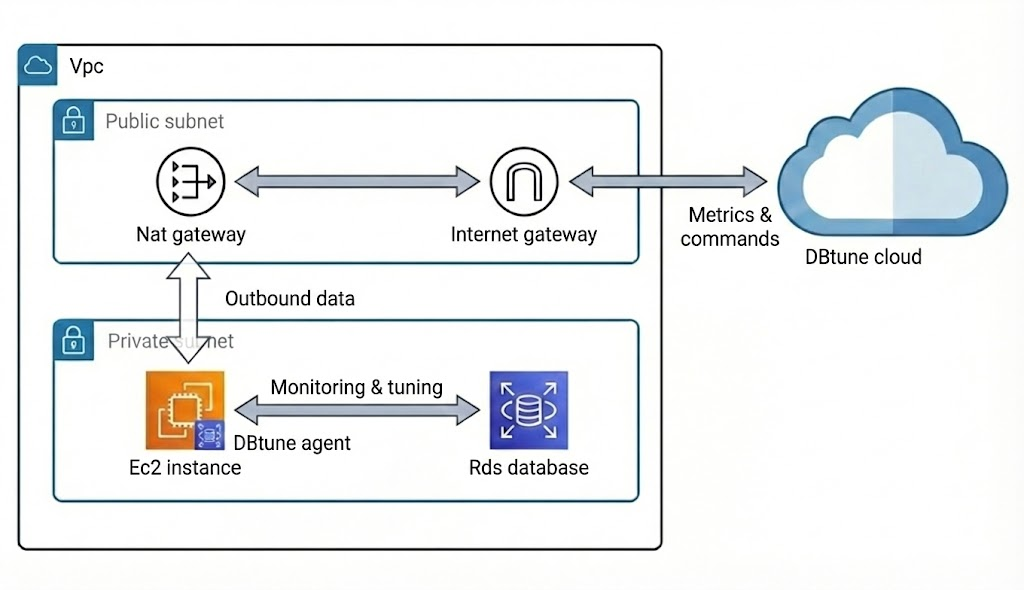
What you need:
- VPC with private subnet.
- NAT gateway in public subnet (must be in
availablestate). - Internet gateway attached to VPC (required by the NAT gateway).
- Route table with
0.0.0.0/0→ NAT gateway.
Traffic flow:
- EC2 → Internet: Via NAT gateway.
- EC2 → RDS: Intra-VPC routing.
Follow the guide to setup nat gateway.
If you have both public and private subnets, which option should you choose?
Use public subnet (option 1) if:
- Your security policies allow EC2 instances with public IPs.
- You can place the agent in a public subnet.
Use private subnet (option 2) if:
- Security policies require EC2 instance in private subnets.
- Compliance requirements mandate no public IPs.
Regardless of which option you choose, the CloudFormation template will automatically set up the following Security group rules:
| Resource | Direction | Port | Source / Destination | Purpose |
|---|---|---|---|---|
| Agent EC2 Instance | Outbound | 443 (HTTPS) | 0.0.0.0/0 | Allow communication with app.dbtune.com |
| Agent EC2 Instance | Outbound | 5432 (PostgreSQL) | RDS/Aurora security group | Allow the agent to connect to the database |
| RDS/Aurora Instance | Inbound | 5432 (PostgreSQL) | Agent EC2 instance security group | Allow the agent to access the database |
Cleanup
To remove all resources created by this template:
- Go to: CloudFormation Console → Stacks.
- Select your stack.
- Click Delete.
- Wait for deletion to complete (~2-3 minutes).
This will remove:
- EC2 instance.
- Security group and rules.
- IAM role and managed policy.
- Secrets manager secret.
- CloudWatch log group (if enabled).
- The inbound rule added to your RDS/Aurora security group during deployment.